Skip to content
Players

GSE Smart IPTV — The Powerful Cross-Platform IPTV Player for iOS & Android

·6 min read
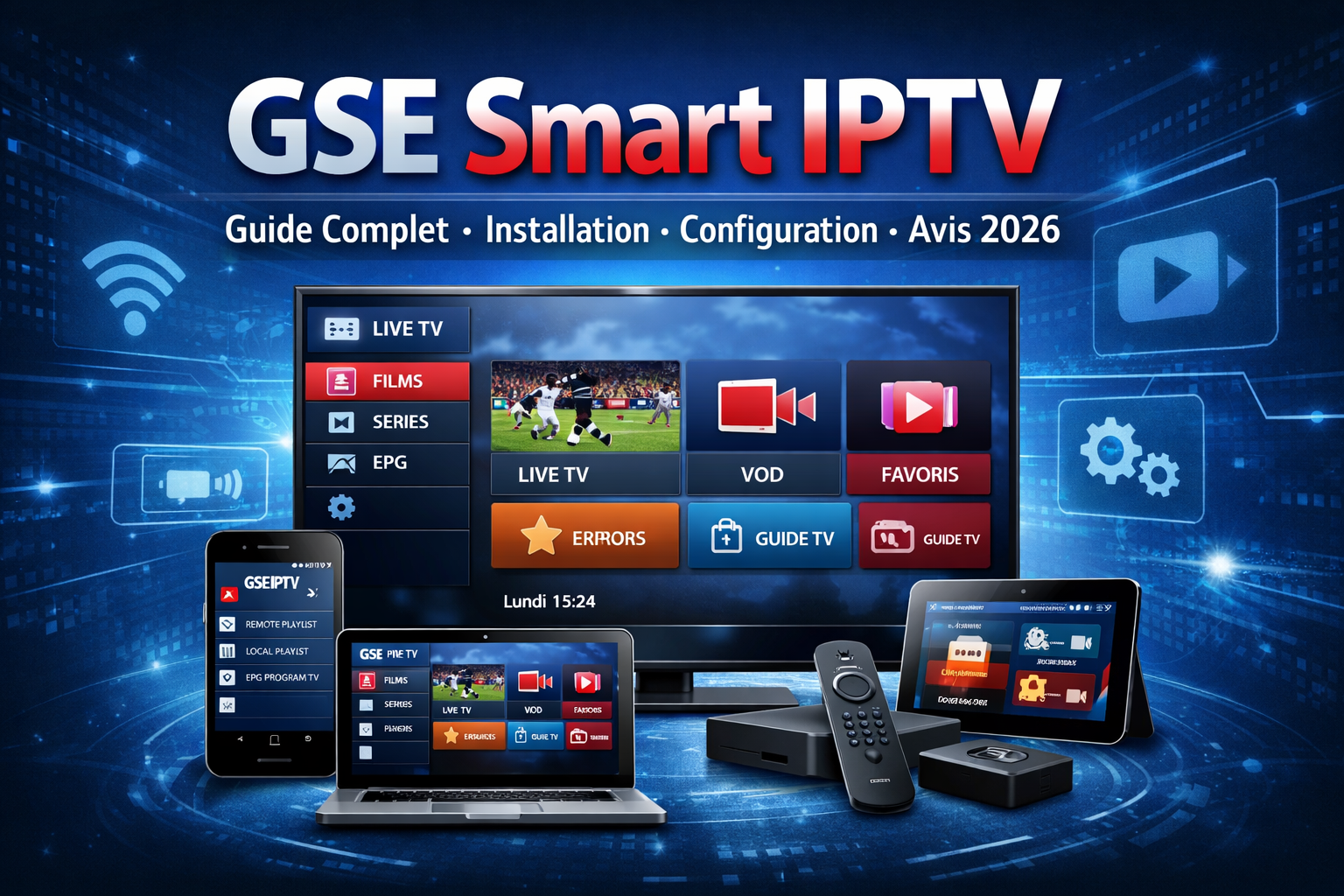
GSE Smart IPTV player interface on iPhone

GSE Smart IPTV is the go-to IPTV player for iPhone, iPad and Android users who want advanced EPG features and protocol support in a single app.

GSE Smart IPTV (also known as GSE IPTV) stands out as one of the most feature-rich IPTV players available for both iOS and Android. While Apple App Store policies are restrictive for many IPTV apps, GSE Smart IPTV has been approved and remains a top choice for iPhone and iPad users who need a powerful IPTV client. It is consistently one of the highest-rated IPTV apps on the App Store.

GSE supports an impressive range of IPTV formats and protocols including M3U playlists, Xtream Codes API, Stalker portals, and even direct stream URLs. It also handles virtually every streaming protocol used by IPTV providers: HLS, RTMP, RTSP, MPEG-TS, and HTTP. This protocol versatility means GSE can connect to almost any IPTV service without compatibility issues. The app also supports EPG in XMLTV and JTV formats, and can auto-detect the correct EPG source based on your playlist provider.

The EPG (Electronic Programme Guide) system in GSE is particularly strong. It supports XMLTV and JTV EPG formats, and allows users to import EPG data from external URLs. The grid view shows up to 7 days of programming, with the ability to set reminders, schedule recordings, and mark favourite shows. The recording scheduler can capture full series automatically, and recorded files are stored in the app's local library for offline playback.

Additional features include Chromecast and AirPlay support, parental controls, multiple playlist management, and a powerful built-in search that finds content across all loaded playlists. The free version includes ads, but a one-time premium upgrade removes them and unlocks extra features. For users who split their viewing between iOS and Android devices, GSE is the best cross-platform IPTV player available.

GSE also supports external players like VLC, MX Player, and ExoPlayer for users who prefer a custom playback engine. Subtitles, audio track selection, and aspect ratio controls are built in. For iPad users in particular, GSE takes full advantage of the larger screen with a multi-column layout that makes browsing large channel lists much easier than on the iPhone. The developer releases updates frequently, adding support for new protocols and fixing bugs reported by the active user community.

Setup is straightforward: download GSE from the App Store or Play Store, open the app, tap the plus icon to add a new playlist, choose between M3U URL or Xtream Codes API, and enter your credentials. The app fetches the channel list, logos, and EPG data in under a minute. For users with multiple IPTV subscriptions, GSE supports unlimited playlists with quick switching from the home screen. The combination of cross-platform parity, deep protocol support, and a long track record of App Store approval makes GSE Smart IPTV the safest long-term IPTV player choice for Apple users in 2026. For users with slow or unstable internet connections, GSE includes a built-in adaptive bitrate engine that automatically lowers the stream quality to prevent buffering. This is particularly useful for mobile users who frequently switch between Wi-Fi and cellular data. The app also caches recently watched channels, so resuming playback is instant. With millions of installs across iOS and Android, GSE Smart IPTV has proven itself as a reliable, long-term IPTV solution that works for both casual viewers and power users alike.

Extended: choosing the right IPTV player (performance + experience)

Att välja IPTV-spelare påverkar både stabilitet och hur enkelt det är att använda din kanalguide.

### 1) Performance matters En spelare som är “snygg” är inte alltid “snabb”. På långsammare enheter kan tung guide-laddning orsaka lagg.

Regel: - Hellre stabil än överdrivet avancerad på äldre hårdvara.

### 2) Guide (EPG) experience En bra EPG ger: - snabb sökning - smidiga programbyten - bättre tidsnavigation

### 3) Playlist flexibility Välj en spelare som stödjer: - M3U - Xtream Codes - flera spellistor

### 4) UX for remote controls Om du använder TV/Stick: fjärrkontrollvänlig navigering är avgörande.

Kolla: - stora knappar - tydlig typografi - snabb response när du byter kanal

---

## Practical recommendations - Fire TV Stick: välj en spelare som ger stabil guide och snabba byten. - Android TV: välj en som kan hantera EPG effektivt. - Set‑top box: välj lightweight.

---

## Final note Testa först i 15–30 minuter. Byt inte allt samtidigt. Om något känns långsamt, justera en faktor i taget.

FAQ (quick answers)

### Do I need a VPN for IPTV? Not always. Many users stream without a VPN, but in some regions ISPs apply throttling or blocking to certain routes. If your IPTV stream starts buffering, try testing without a VPN first. If it’s unstable, then a reputable VPN can help by improving routing quality.

### What is the best internet speed for IPTV? For most households, 25–50 Mbps is enough for a smooth experience. Higher-quality 4K streams need more bandwidth and a stable connection. If you share the connection with gaming or video calls, consider upgrading your plan or moving to Ethernet.

### Why does my IPTV disconnect after 10–30 minutes? Common causes are DNS issues, router power-saving modes, or an unstable Wi‑Fi signal. Try switching DNS to 1.1.1.1 and 8.8.8.8, disable Wi‑Fi power saving, and reboot both your router and the streaming device.

### How can I reduce buffering? Use Ethernet when possible. If you must use Wi‑Fi, move the device closer to the router, reduce interference (2.4 GHz vs 5 GHz tuning), and ensure your router isn’t overheating.

### What player should I use? Use a player that matches your device: - Fire TV Stick: TiviMate, Downloader + compatible IPTV player. - Android TV / Shield: TiviMate or OTT Navigator. - Older phones / set‑top boxes: Perfect Player or Smarters Pro.

### Is this guide only for Fire TV Stick? This guide is tailored for Fire TV Stick when installing the Downloader app and sideloading a player APK. The networking troubleshooting notes apply broadly to other devices too.

---

## Summary If you follow the steps carefully—install Downloader, enable “Apps from Unknown Sources”, enter the correct APK URL, and confirm your player credentials—you’ll usually be streaming in under 10 minutes. And if anything goes wrong, the troubleshooting section above is designed to help you fix it quickly.